PDF to PNG: Turn Each Page into a Crisp Image
PDF to PNG right in your browser: pick the pages, set the sharpness and save lossless pictures. Your document is read on your own device and never travels to a server.
Converted on this device. Your files are never uploaded.
How it works
Drop in your PDF
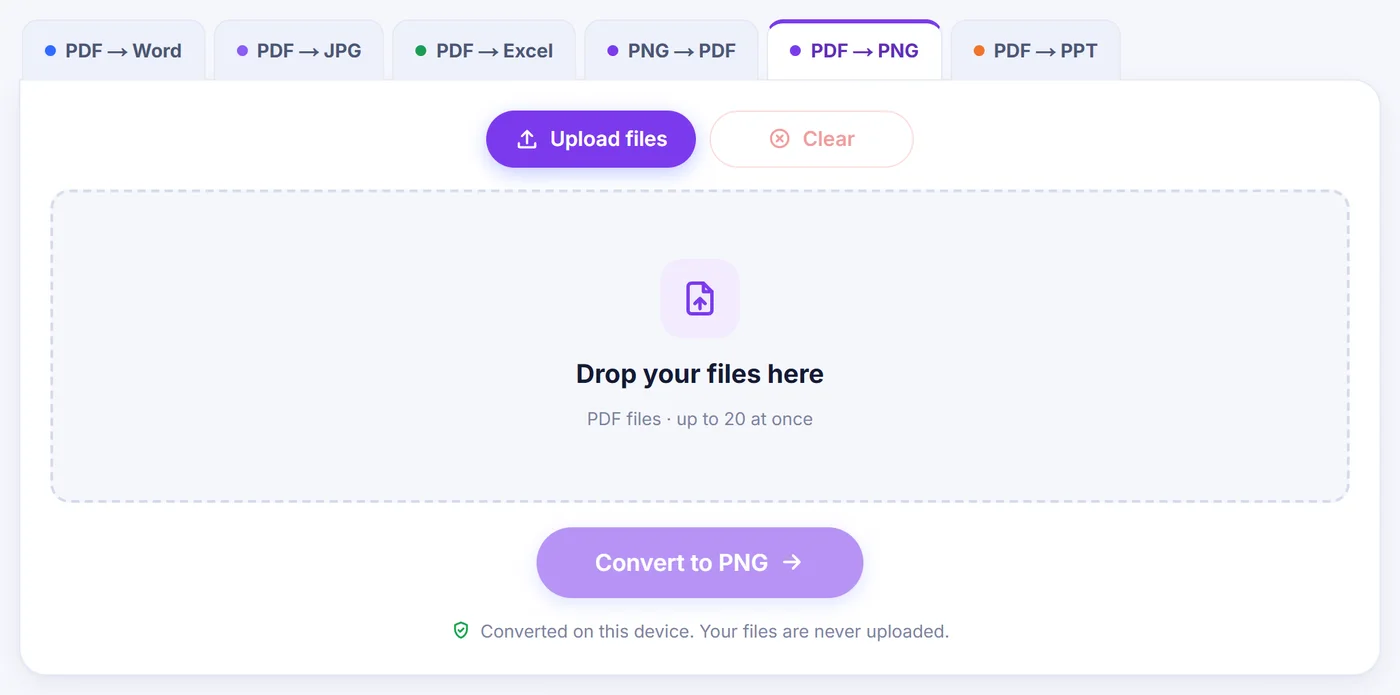
Add a single document or a batch of up to 20; a locked file asks for its password before anything is rendered.
Pick pages and sharpness
Click page thumbnails or type something like 2-4, last, then choose 72, 150, 300 or 600 dpi and watch the size estimate change.
Save your pictures
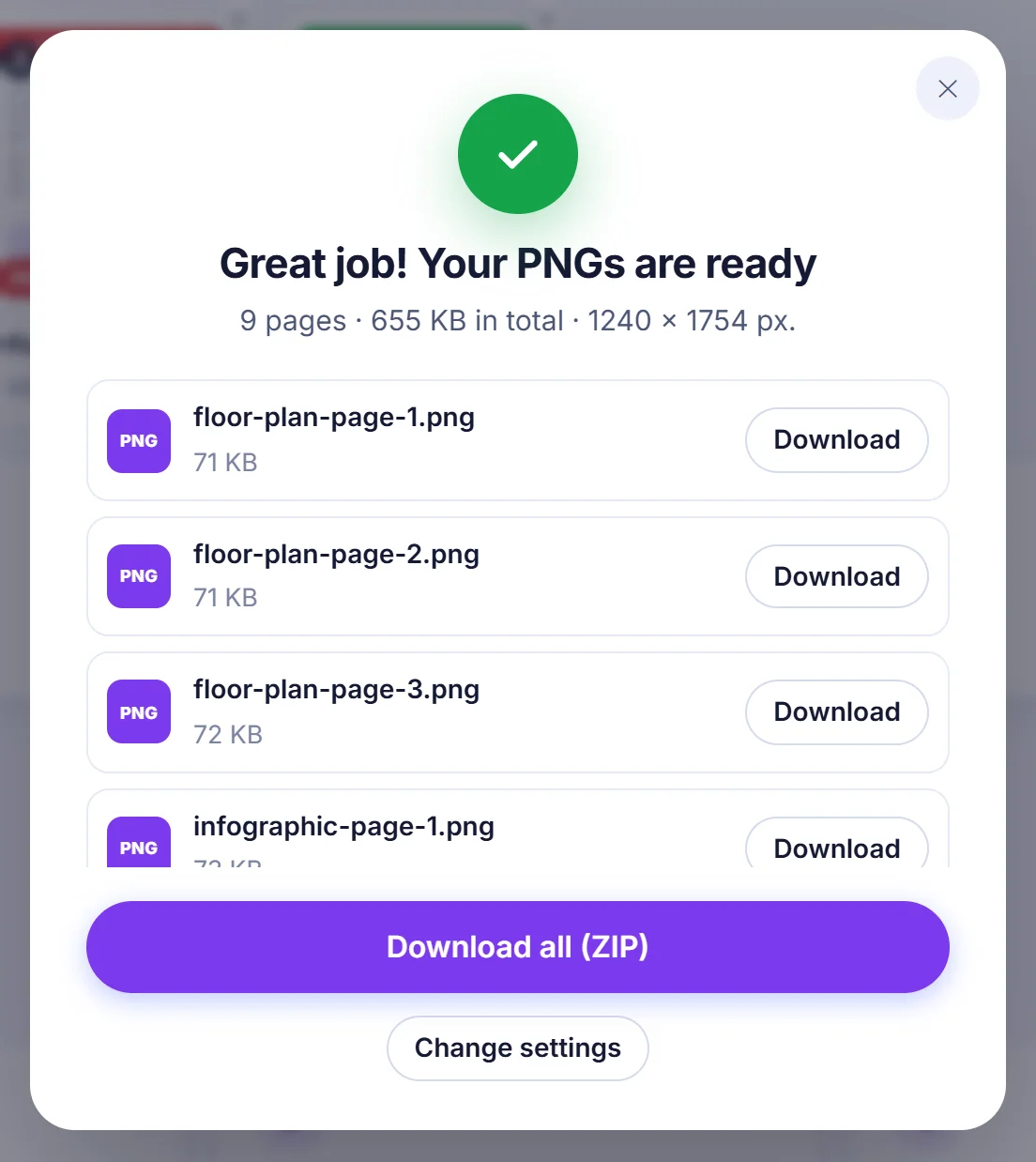
Keep every PNG as its own download, grab them all in one ZIP archive, or get a single long picture with the pages stacked in order.
Why people turn PDF pages into PNG pictures
A PDF is great for printing and archiving, but awkward almost everywhere else. A slide deck shared as PDF cannot be dropped into a chat as a preview. A chart buried on page 14 of a report cannot be pasted into a wiki, a ticket or a design file. A page from a contract that you want to annotate in an image editor first has to become an image. PNG is the natural target for this kind of job: it is lossless, so thin lines and small type stay clean instead of picking up the fuzzy blocks you get with JPG, and it can carry transparency.
Typical jobs: thumbnails for a document library, screenshots of a single page for a presentation, artwork or logos that arrived as PDF, scanned forms that need to go into a system which only accepts pictures, and full-length previews of a booklet that someone can scroll on a phone.
How the PDF to PNG conversion works here
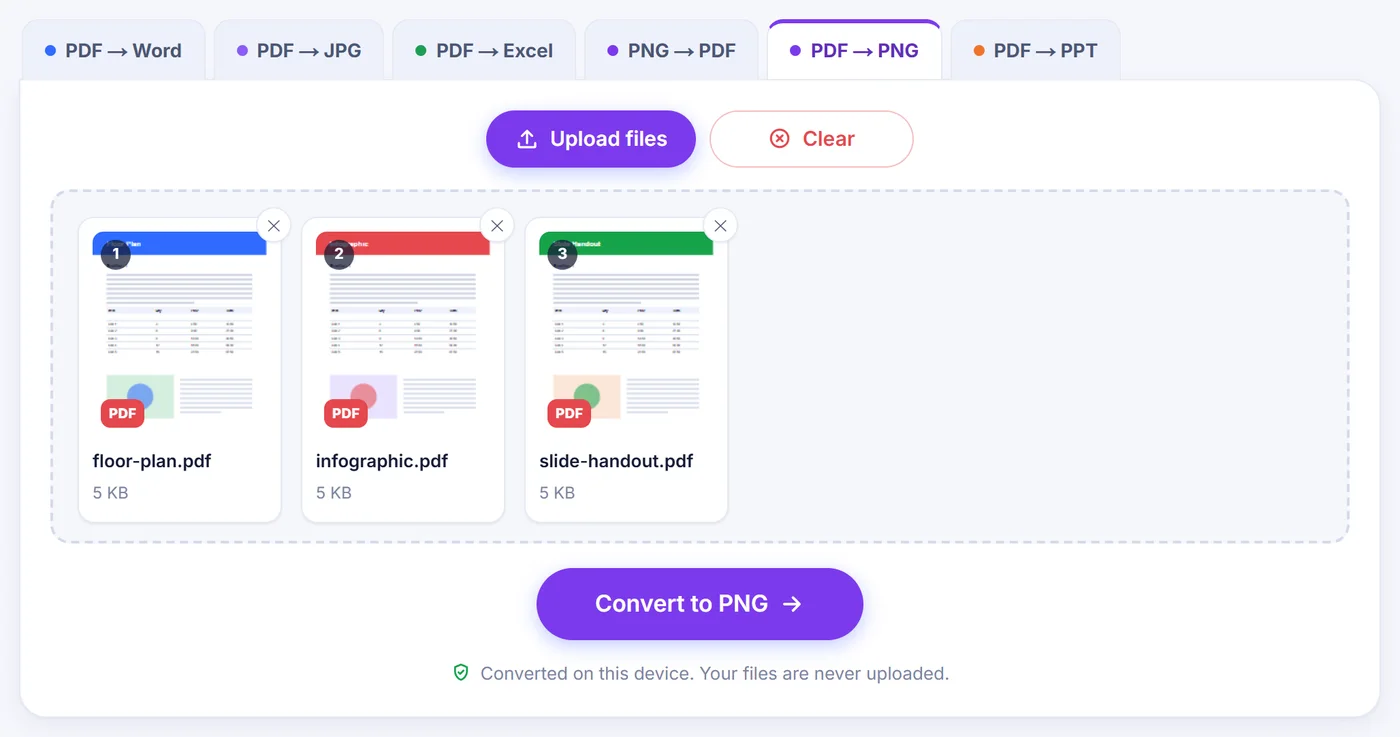
Add your file with the button or drag it onto the page. Once the PDF opens, a settings window appears with everything in one place.
Choosing pages
With a single document you get a grid of page thumbnails, drawn lazily as you scroll so even long files open quickly. Click a page to include or exclude it, hold Shift and click to grab a whole run, or use the All, None, Odd and Even shortcuts. If you prefer typing, the box accepts forms such as 1-3, 8, 10-last, 5 to 9, -4 (the start up to page 4) or 12- (page 12 to the end). An empty box means every page.
With several PDFs at once there are no thumbnails; instead you decide what to take from each file: all pages, only the first page (handy for cover images), or a custom pattern like 1-2, last. Pages a shorter file does not have are simply skipped.
Picking a resolution
Four presets cover most needs: 72 dpi for small screen previews, 150 dpi as an everyday default, 300 dpi for print and 600 dpi when you need to zoom into fine detail. You can also enter your own value between 18 and 1200 dpi, or switch the unit to px wide and ask for an exact width from 50 to 20,000 pixels, which is ideal when a website or app expects images of a fixed width. Below the choices you see the pixel dimensions of page 1, so there is no guessing.
Background and output
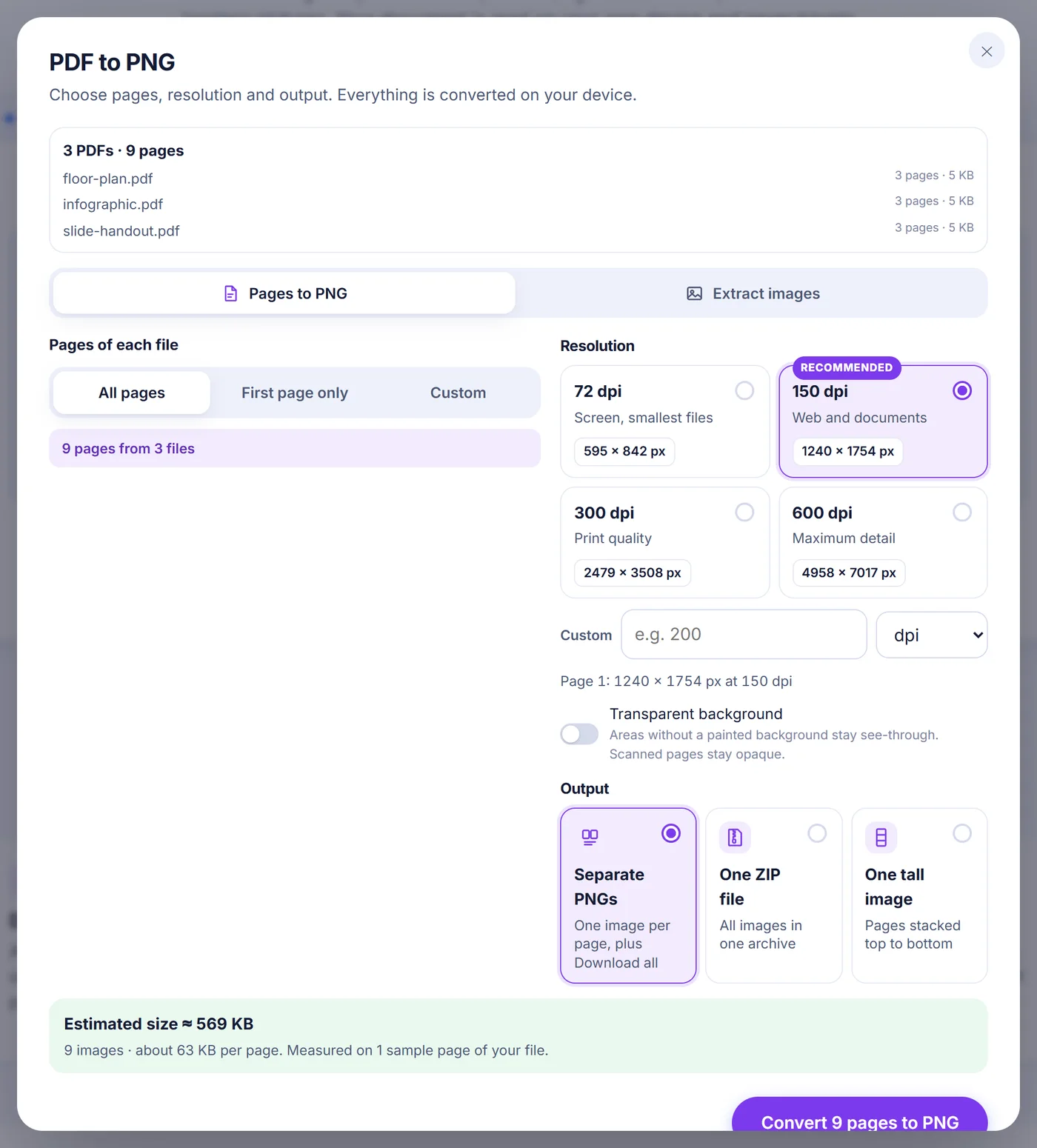
The Transparent background switch leaves unpainted areas see-through, which is what you want for a logo or a diagram that will sit on a coloured slide. Pages that are really photographs, such as scans, stay opaque because the picture itself covers the page. Then choose how to receive the result: separate PNGs (each with its own download link plus a Download all button), one ZIP archive, or one tall image with the selected pages stacked top to bottom. For the tall image you can add a thin gap between pages so the page breaks remain visible.
Before you press the button, a live estimate tells you roughly how heavy the download will be. It is not a rule of thumb: up to three of your own pages are rendered at two small sizes and encoded as PNG on your device, and the numbers are scaled from those real measurements.
Saving the pictures inside a PDF instead of whole pages
Sometimes you do not want the page at all, only the photo on it. Switch the mode to Extract images and the tool reads the embedded pictures (photos, scanned sheets, logos) and saves each one as a PNG at the pixel size it was stored with, without the surrounding text. Masks and transparency are kept. Two options keep the result tidy: Skip tiny images ignores bullets, icons and rules smaller than 32 px, and Skip duplicates saves a logo that appears on every page just once. If nothing turns up, the content is probably vector graphics rather than pictures; converting the pages is then the way to capture what you see.
File names, quality and what to expect
Each page is named after the original file with a zero-padded number, for example annual-report-page-007.png for page 7 of a report with more than 99 pages, so the images sort correctly in any folder. Extracted pictures get a suffix such as -page-03-image-2.png, and a tall image is called -all-pages.png or names the range you chose. The ZIP is stored without extra compression, because PNG data is already compressed and squeezing it again would only cost time.
Because every page is rendered exactly as a PDF viewer would draw it, fonts, vector drawings, tables and colours look the same as on screen. What changes is that the result is a picture: text can no longer be selected or searched, and links stop being clickable. If you need editable text, an image is the wrong target.
Tips and fixes for common problems
- Files are larger than expected. Doubling the dpi gives four times the pixels. 150 dpi is usually enough for screens; keep 300 and 600 dpi for printing and close-up work.
- Password-protected PDF. You are asked for the password, which is only used locally to open the file. In a batch you can choose Skip this file and carry on with the rest.
- Scanned documents. They convert fine, since each page is just drawn as it looks. No text recognition is performed, so the PNG holds the same image the scanner produced.
- Phones and tablets. Mobile browsers limit how big one image can be (about 16.7 million pixels). If a page would exceed what your device allows, it is scaled down automatically and the result tells you how many images were reduced. A computer handles much larger pages.
- Something takes too long. A Cancel button stops the work at any time, and after a finished conversion Change settings brings you straight back to the options without picking the file again.
Your PDF stays on your device
All rendering happens in the browser tab you are looking at, using JavaScript. The PDF is not sent anywhere, so there is no copy on a server that would need deleting later; closing the tab clears it from memory. Pages are drawn one at a time, which keeps memory use modest even for long documents. There is no sign-up, no watermark on the images and no email address to type in. It works in current Chrome, Edge, Firefox and Safari on Windows, macOS, Linux, Android, iPhone and iPad.
Frequently asked questions
How do I convert a PDF to PNG without losing quality?
Choose 300 dpi or higher, or type an exact pixel width that matches where the image will be used. PNG is lossless, so sharp text and thin lines are kept as rendered.
Can I save just one page of a PDF as a PNG?
Yes. Click that page in the thumbnail grid after pressing None, or type its number in the page box. Only the pages you select are rendered.
How do I get a PNG with a transparent background from a PDF?
Turn on Transparent background before converting. Areas the PDF does not paint stay see-through; scanned pages remain opaque because the scan fills the whole page.
Can I convert several PDF files to PNG at once?
Yes, add up to 20 PDFs together. You choose all pages, only the first page or a custom range for every file, and each file is converted in turn.
Can I put all PDF pages into one PNG image?
Pick One tall image as the output. The chosen pages are stacked top to bottom, with an optional thin gap, and each PDF in a batch gets its own tall image. This option is for whole pages, not for extracted pictures.
Is this PDF to PNG converter safe for confidential files?
Your file is opened and rendered by your browser on your own device and is never uploaded. Closing the tab removes everything from memory.